
Every PC you own, in your pocket.
ANLINK pairs your iPhone or iPad with the computers you care about. Wake one from sleep on the train home, shut them all down from bed, and see exactly what each machine is doing right now — from anywhere, not just your couch.
What you can do
Not a remote desktop. ANLINK is for the things you actually want from your phone — fast, glanceable, and one tap away.
Full Power Control
Sleep, hibernate, restart, shut down, lock, or log off any paired PC. Every action is confirmed before it runs.
Wake From Anywhere
Wake-on-LAN without the homework. ANLINK finds the right network adapter itself, so there is no MAC address to look up.
Live Dashboard
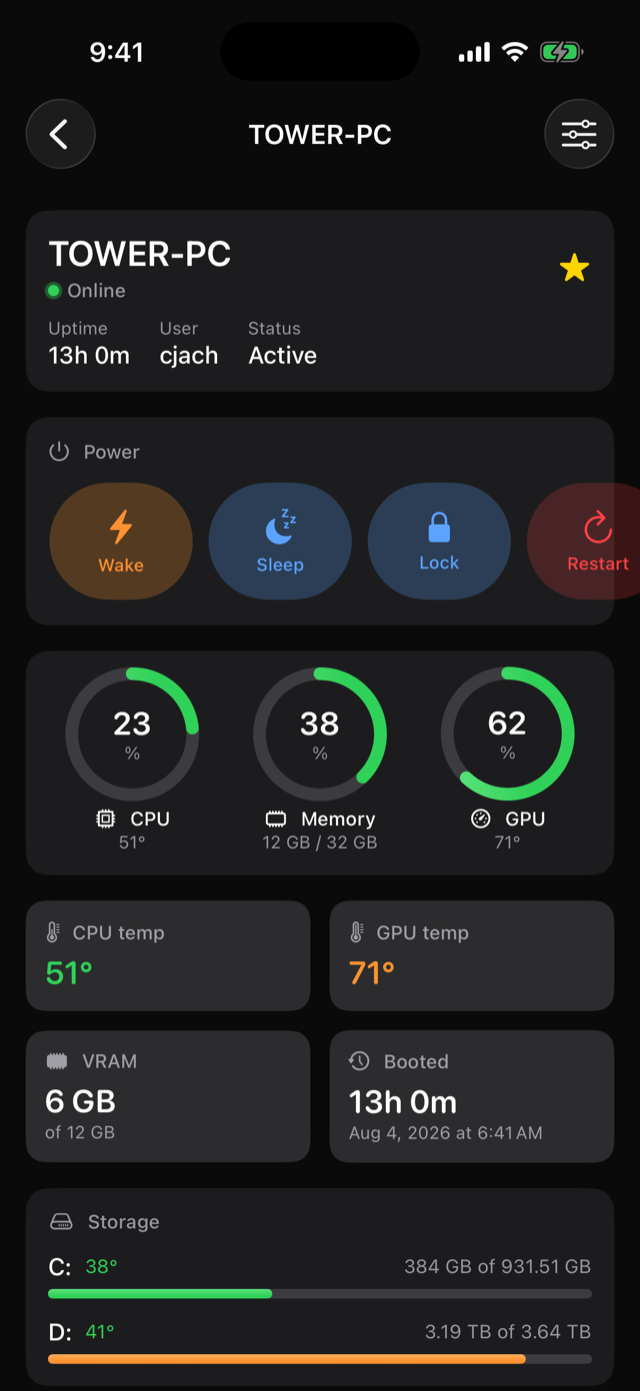
CPU, memory and GPU load, temperatures, disk space, network throughput, battery and uptime — updating as you watch.
Off Your Network
Works on cellular, at the office, or on hotel Wi-Fi. No port forwarding, no VPN, no static IP to configure.
Every Machine At Once
Pair as many PCs as you like. Group them, favourite the ones you touch daily, and switch between them instantly.
Pair By Scanning
Your PC shows a QR code, your phone scans it. That is the whole setup — no accounts, no passwords, no typing IP addresses.
Network Tools
Scan your Wi-Fi to see every device on it, then ping, traceroute, look up DNS, check open ports or ask who owns an address — all from the phone, with no PC needed.
Speed Test
Latency, jitter, download and upload against the nearest Cloudflare server, graded for bufferbloat — plus a second test that measures the local network between your phone and a PC.
Task Manager
See what is running on the PC and end a stuck task, or start and stop Windows services. Off by default, like everything this powerful, and granted per phone at the PC.
Files
Browse the folders your PC shares and download them to your phone. Read-only, and only once the PC has shared a folder and granted that phone access — two switches, both at the PC.
Alerts
A drive filling up or wearing out, a processor running hot, a battery running low, an update waiting on a restart — the PC tells you before it becomes a problem.
Troubleshoot
Why does this PC keep crashing? Crash and boot history, Windows' own stability score and the event log — with plain-English explanations of what each entry means.
Performance History
The dashboard's numbers, kept: graphs over the last hour, day and week, and a record of what you played full-screen and for how long.
See it in action
Real screens from the beta build, running on an iPhone. Pick a step — or leave it running.
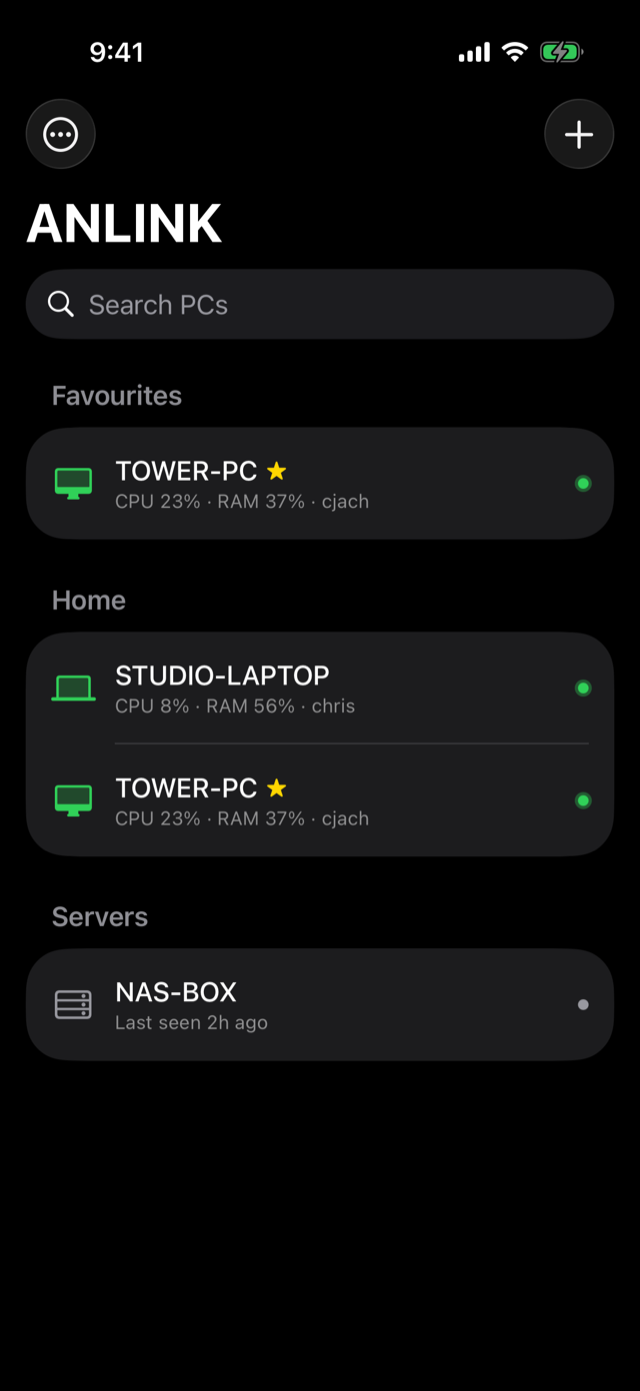
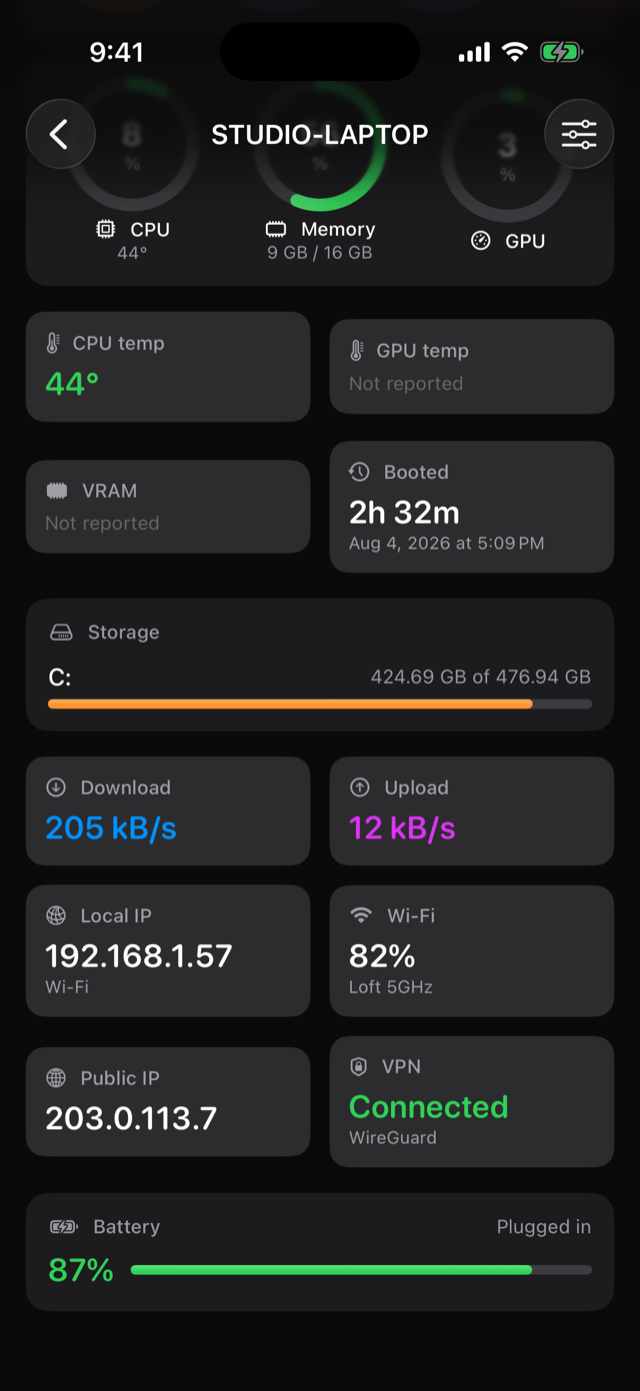
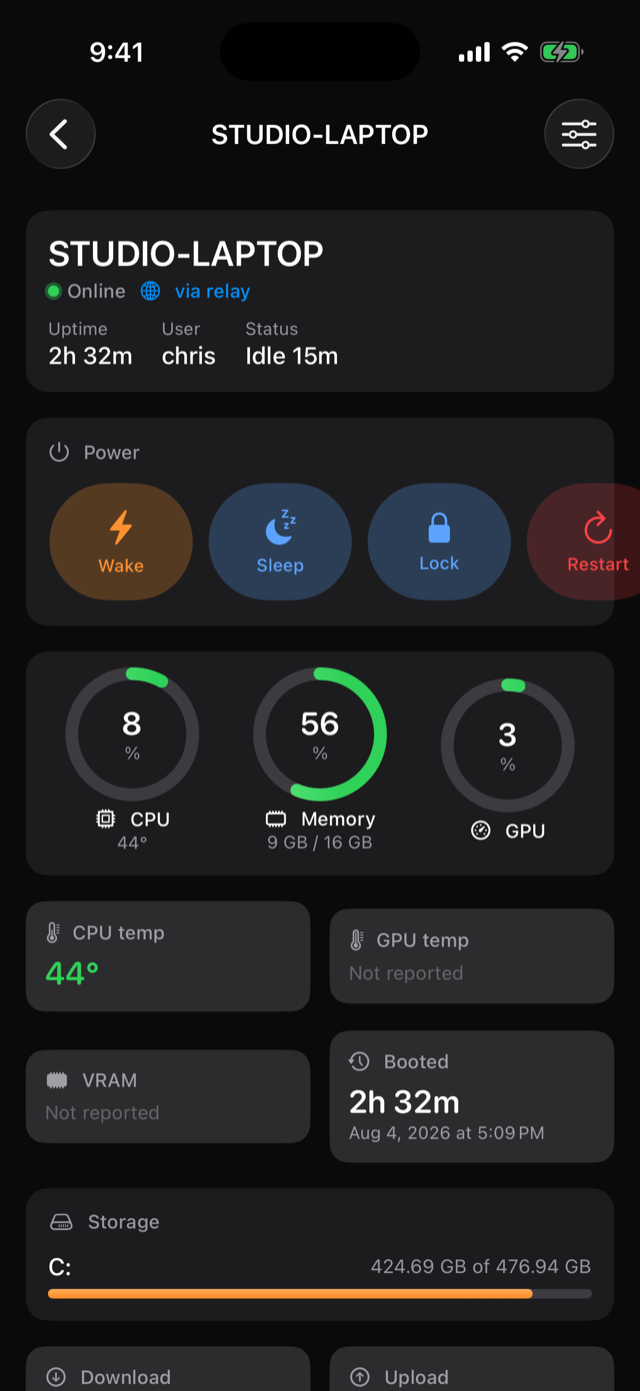
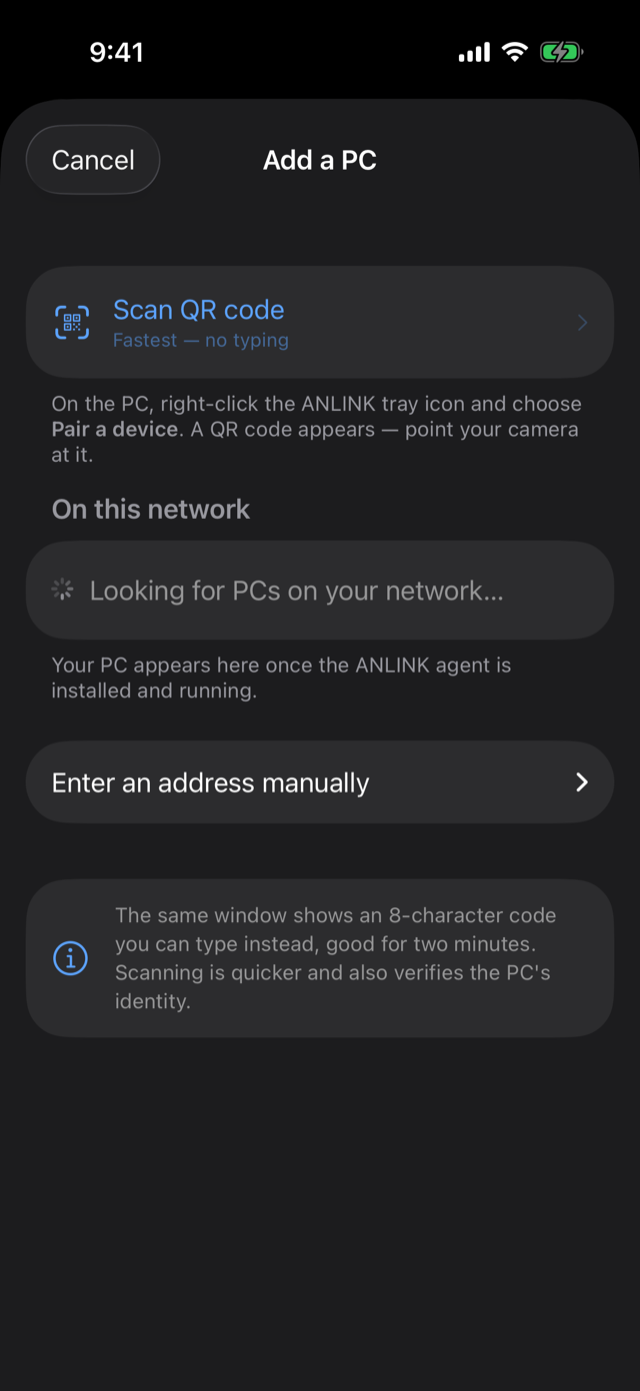
Beta build with sample machines. Live figures come from the agent on your own PCs.
Set up in about a minute
Three steps, once per PC.
Install the agent
A single installer on the Windows PC you want to control. Everything it needs is bundled — nothing else to install first.
Scan the code
Right-click the tray icon, choose Pair a device, and scan the QR code with your phone. The code expires on its own.
You are done
The PC appears on your phone with live status. It reconnects by itself after reboots, and starts with Windows.
Get the beta
One command on each PC you want to control. The phone app is in beta on TestFlight — join it below.
Windows agent
Available nowOpen PowerShell and run this. It downloads the current build, checks its SHA-256 before running anything, and asks for administrator rights once.
irm https://relay.assetnode.net/install.ps1 | iex
Updating uses the same command. It reads the version already installed and either upgrades in place or tells you there is nothing to do. Your paired phones and keys are kept.
- Windows 10 version 1809 or later, 64-bit
- Nothing to install first — everything is bundled
- Starts with Windows and reconnects on its own
- Windows will say Unknown publisher during the beta while our certificate is being validated
To remove it later: Settings → Apps → ANLINK → Uninstall. Pairings are kept so a reinstall does not mean setting every phone up again.
iPhone and iPad
Beta on TestFlightJoin the beta
The companion app is in public beta through Apple's TestFlight. Install TestFlight on your iPhone or iPad, join with the button below, and ANLINK appears in your list of betas. The App Store release follows once the beta is done.
Requires iOS or iPadOS 18 or later. Beta builds update on their own as new ones go out.
Built so we cannot read your data
Remote control of your own computers deserves more than a promise. ANLINK is designed so that trusting us is not required.
End-to-End Encrypted
Your phone and your PC agree on a key that no one else holds. Commands and telemetry are encrypted for the whole trip.
A Relay That Sees Nothing
Connecting from outside your home routes through our relay, which forwards sealed traffic it has no key to open. It cannot read your data or impersonate your PC.
Keys In The Secure Enclave
Your phone's identity key is generated inside Apple's Secure Enclave and never leaves it. Face ID or a PIN gates the app itself.
Encrypted On Your Device
Paired PCs, history and settings are stored encrypted on your phone. Each PC is pinned to its exact key, so nothing else can pose as it.
Where ANLINK Is Today
ANLINK is in beta. The Windows agent is public — the command above installs the current build on any PC you own. The iPhone and iPad app is in public beta on TestFlight; join it from the button above, and the App Store release follows once the beta is done.
Everything here is real and working, but it is beta software on your own machines. If something misbehaves, tell us — that is exactly what this stage is for.
Windows 10 version 1809 or later, 64-bit. The companion app requires iOS or iPadOS 18 or later. Read the ANLINK privacy policy.
ANLINK is part of AssetNode
Same people, same principle. ANLINK expands control to your devices.
Explore AssetNode